Clinic Waitlist Automation
When a patient cancels, give the next person on the waitlist a chance to take the appointment.
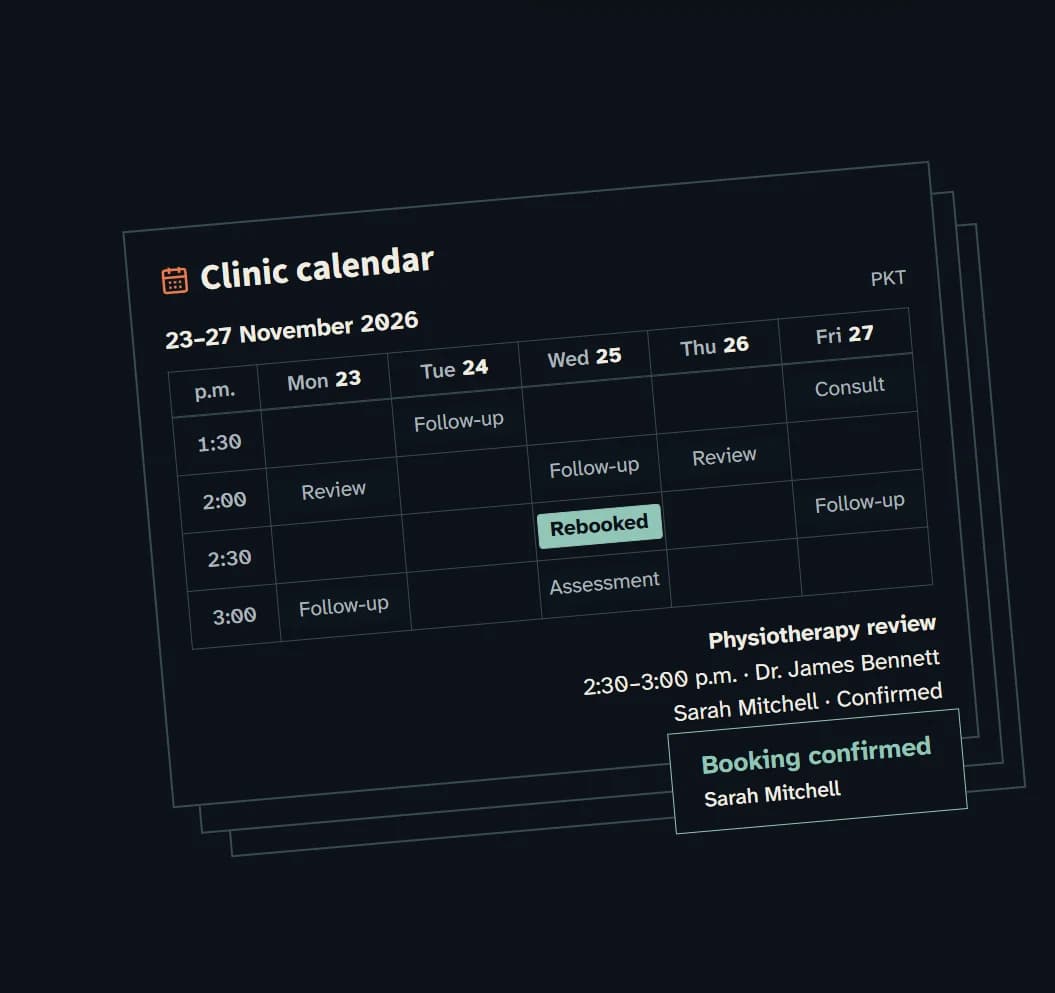
Clinic waitlist
The 2:30 slot just opened.
The next patient gets an offer.
Calendar, waitlist and patient replies.
Try the interactive walkthrough
A sample calendar and inbox recreate the Zapier workflow in your browser. Calendar cancellation detection and automatic booking are integration previews. All appointments and messages are fictional.
- Cancel
- Find a match
- Get a reply
- Resolve the slot
Start with the 2:30 p.m. booking
Cancel the booking for John Miller. The demo detects the opening and checks the waitlist.
Clinic calendar
| p.m. | Mon 23 | Tue 24 | Wed 25 | Thu 26 | Fri 27 |
|---|---|---|---|---|---|
| 1:30 | Follow-up | Consult | |||
| 2:00 | Review | Follow-up | Review | ||
| 2:30 | Booked | Follow-up | |||
| 3:00 | Follow-up | Assessment |
Physiotherapy review
2:30–3:00 p.m. · Dr. James Bennett
John Miller
Demo inbox
Offer emails and updates will appear here as the walkthrough runs.
Workflow activity
Activity will appear when you cancel the booking.
View the sample waitlist
- Emily CarterPhysiotherapy review
- Michael BrooksPhysiotherapy review
- Sarah MitchellPhysiotherapy review
- Daniel WilsonInitial consultation
- Rachel KimOffer emails off
- Chris JordanPhysiotherapy review · Available after 3 p.m.
Tools and Skills

Technologies
- Zapier
- Google Sheets
- Gmail
- Next.js
Skills Applied
- Waitlist matching
- Conditional routing
- Offer expiry
- Reception handoff
The problem
A last-minute cancellation leaves reception with an empty slot and a list of people to call. Staff have to check who wants that appointment type, who can make the time and when to move on if someone is silent.
What I built
Three Zaps handle matching, replies, and offer expiry. I designed two more to connect the waitlist to the clinic calendar. The interactive walkthrough shows how all five would work together.
Detect Calendar Cancellation
A cancellation in the clinic calendar opens the matching slot in Google Sheets. Reception can then see that the time is available for an offer.
Send Offer
A ready slot in Google Sheets starts the workflow. Zapier checks who opted in, needs that appointment type and is free for the full slot. It emails the first eligible patient in join order and holds the slot for five minutes.
Waitlist - Process Reply
The patient uses the offer link to accept or decline. An acceptance records the patient’s reply and emails reception. A decline reopens the slot so the next eligible person gets an offer.
Waitlist - Expire Offer
When the deadline passes, the Zap checks that the same offer is still active before it reopens the slot. The next patient gets a fresh offer. If the list runs out, reception gets a review email.
Book Accepted Appointment
An acceptance triggers a fresh availability check. If the slot is still free, the Zap creates the calendar booking and sends a confirmation. If another booking took the slot, reception gets the case to review.
Still filling cancellations by hand?
Bring your booking and waitlist process. We can map what can be automated and when a slot needs reception’s attention.
Book a Discovery Call